
Step 1
Upload your image
Click the upload area above the prompt box and pick a JPG, PNG or WebP file. It becomes the first frame, so crop it to the shape you want the video to have and keep the subject clearly visible.
Upload a photo, describe the motion, and get an AI video in minutes. Free to start, no credit card required.
Direct the frame. Choose the engine.
Examples
An AI image to video generator is a tool that takes a still picture as the first frame and uses a video model to predict the frames that follow, turning one photo into a short moving clip that matches your written motion prompt.
The image does the heavy lifting on appearance: the subject, wardrobe, lighting, color palette and composition are already decided, so the prompt only needs to describe movement — a head turn, drifting fog, a slow camera push, water starting to ripple. That is the main difference from text to video, where the model has to invent the whole scene from words and every render can look a little different.
Use image to video when the look is fixed and must survive into motion: a product shot, a character design, an illustration, a portrait or a frame from an earlier AI render. Use text to video when you are still exploring what the scene should look like.
Two frames instead of one: give Genreel a first and a last frame, and it generates the motion in between — handy when a shot has to start and end on an exact pose. There's a full walkthrough on our First and Last Frame to Video Generator page.
The whole workflow happens in the generator at the top of this page. No editing software, no keyframes, no install.
Step 1
Click the upload area above the prompt box and pick a JPG, PNG or WebP file. It becomes the first frame, so crop it to the shape you want the video to have and keep the subject clearly visible.
Step 2
Write what should move and how: the action, its speed, and the camera path. Then say what must stay unchanged, such as the face, the logo or the background, so the model does not redraw it.
Step 3
Pick a video model and set resolution, duration and aspect ratio in the parameters menu. The generate button shows the exact credit cost before you start, and it updates as you change settings.
Step 4
Most clips finish in a few minutes. Preview the result in the browser, download the MP4, or open it later in My films. If a render fails, its credits are returned automatically.
Every model in the generator can start from your image, but they are not interchangeable. They differ in how faithfully they hold the first frame, how much motion they allow, which resolutions and lengths they offer, and whether they generate sound.
The cards below describe the image to video families currently in the model picker. The picker shows the live list, prices and limits for the provider this site is running, so treat it as the final word.
The default model. Holds a character or product steady while adding natural motion, supports clips from 4 to 30 seconds at 480p or 720p, can add native audio, and also accepts reference images, audio and video when you need more control.
Strong at human motion and expressive faces, and the choice when you need a sharp result: 1080p by default with a 4K option, 3 to 15 seconds, optional sound, and both first and last frame input.
Google's models for cinematic camera movement and realistic lighting, with optional generated audio. Clips are 4, 6 or 8 seconds at 720p or 1080p. Veo 3.1 Fast is quicker and cheaper for drafts; Veo 3.1 also accepts reference images.
Good physical motion for people, animals and fabric. Clips are 6 or 10 seconds at 768p, or 6 seconds at 1080p. Hailuo 2.3 Fast only animates an uploaded image, which makes it a low-cost option for this page.
Wan 2.2 Fast is the cheapest way to test an idea: 5-second clips at 480p or 720p with first and last frame. Wan 3.0 goes from 2 up to 30 seconds and up to 1080p when you need a longer shot from one image.
Animates a starting image into a 1 to 15 second clip at up to 720p, with sound generated in the same pass. It does not take a last frame. A 5-second clip is 160 credits.
Sora 2 animates a starting image into a 4, 8 or 12 second clip at 720p, with sound on every render. Sora 2 Pro adds 1024p. It does not take a last frame. A 4-second Sora 2 clip is 180 credits.
Runway Gen-4.5 offers 5 or 10-second clips at 720p with wide aspect-ratio options, and no audio. PixVerse V6 covers 360p to 1080p and supports first and last frame for stylised transitions.
Tip: test the motion on a fast, low-cost model first, then re-run the same image and prompt on Kling 3.0, Veo 3.1 or Seedance 2.5 for the final version.
Each pair below is a real result: the left side is the still image that was uploaded as the first frame, the right side is the clip the model produced. Click an example to load its image and prompt into the generator.

A cartoon creature in a bakery reacts with a stumble, a blink and a grin. The horns, the kitchen and the animated style come straight from the uploaded image.
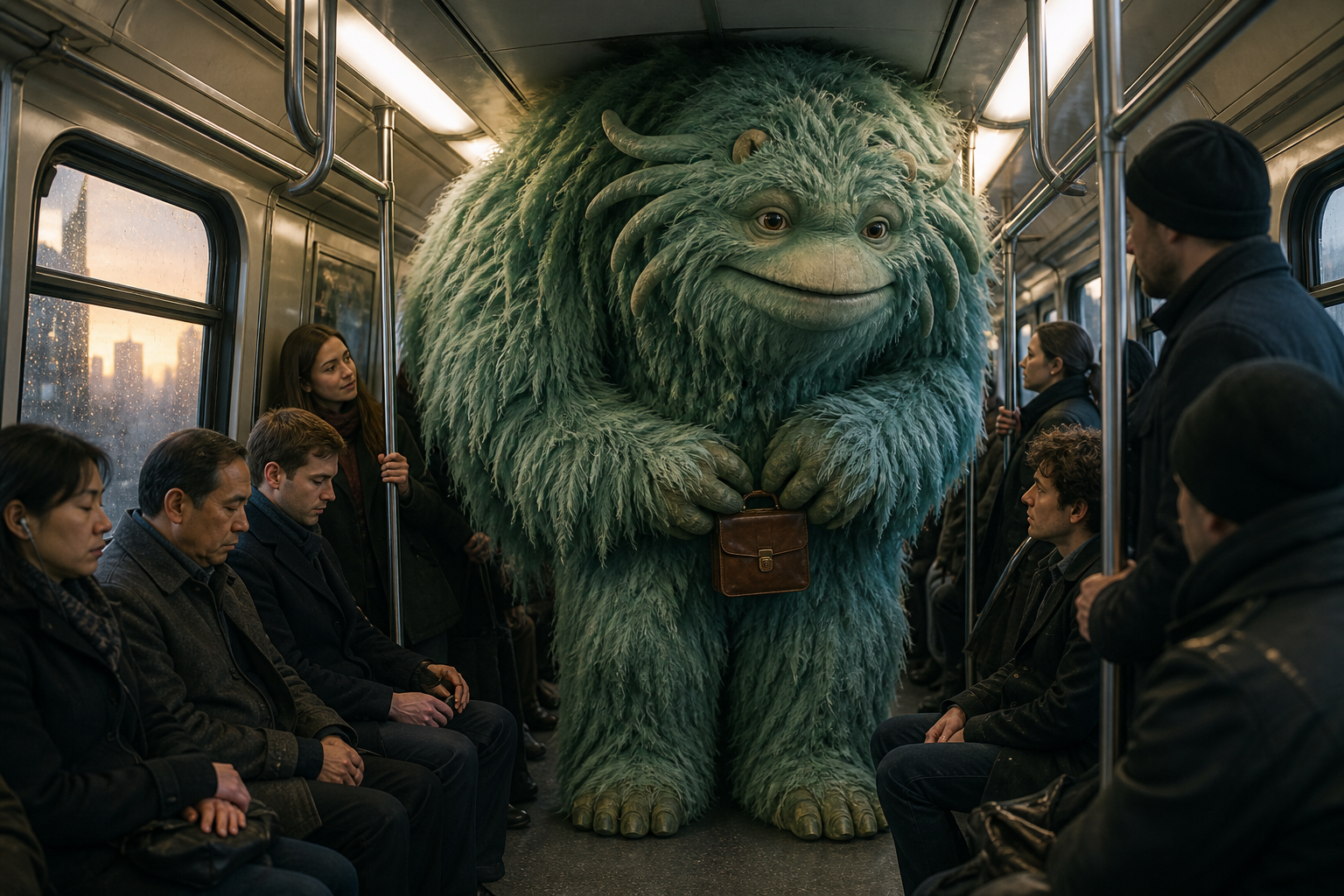
A furry giant on a subway car shifts its briefcase and yawns while the carriage rocks. The passengers stay in place and the photographic look holds.
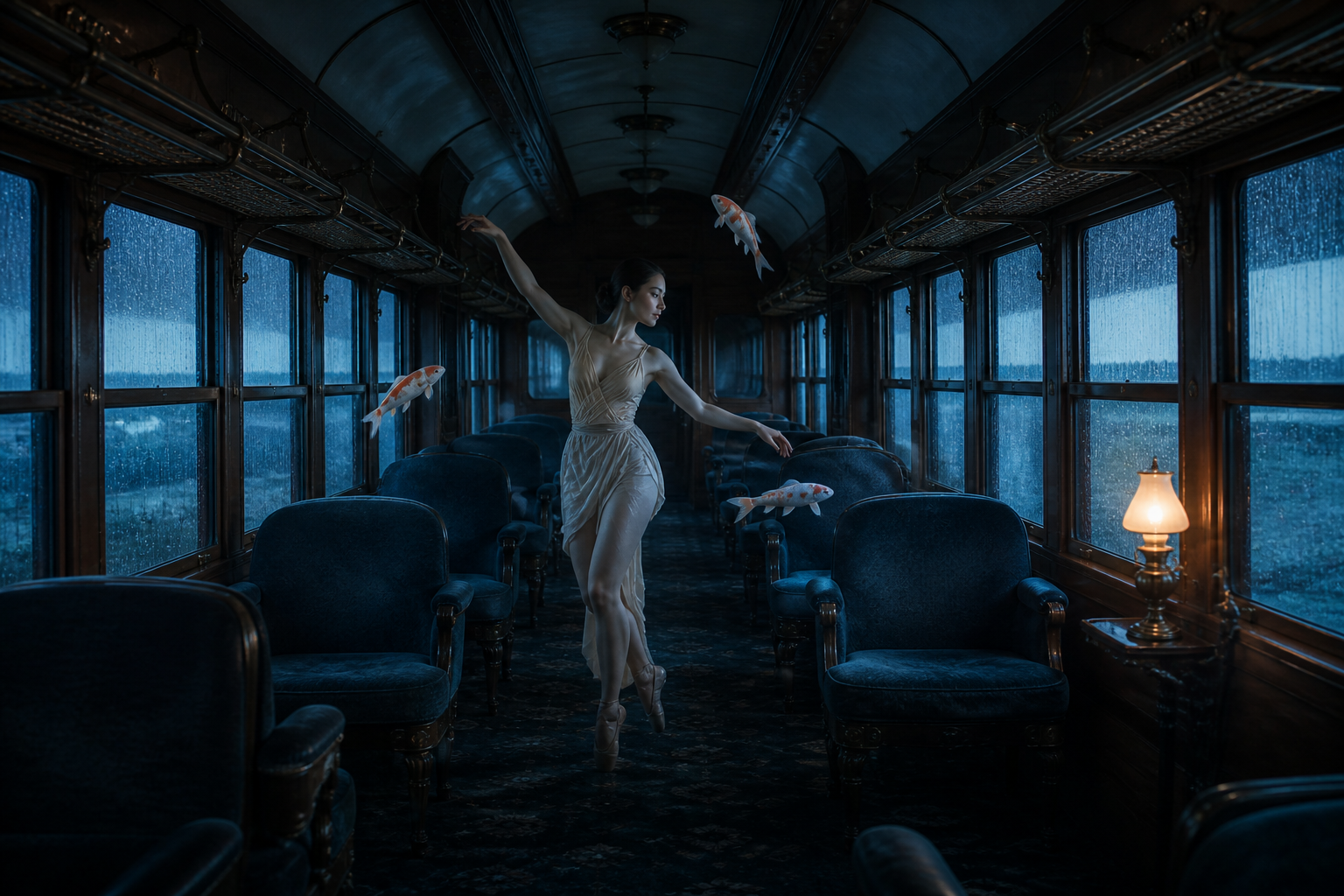
A dancer turns once while three porcelain fish circle her. Rain keeps running down the windows and her face and costume match the still.
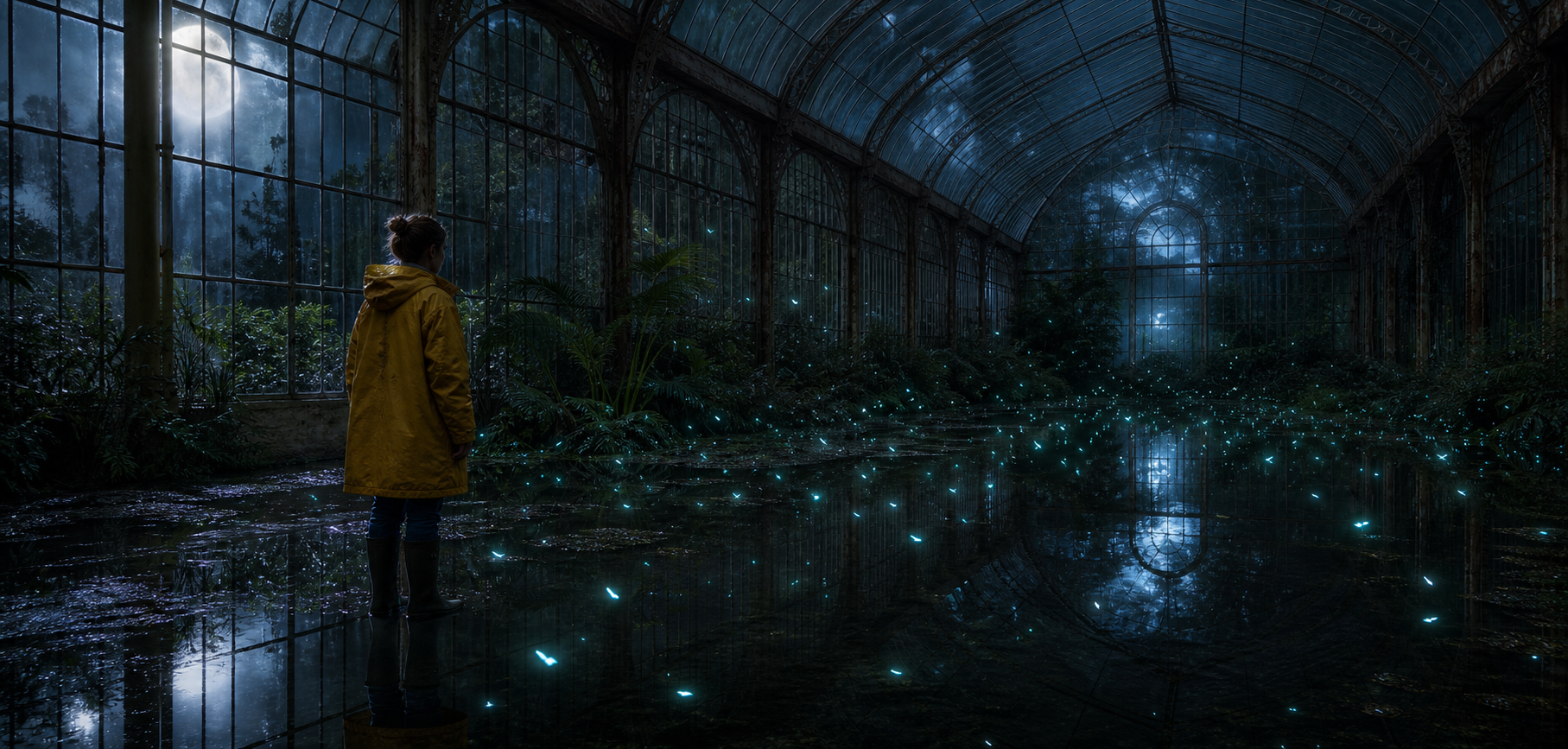
Glowing seeds gather above a raised hand in a flooded greenhouse, throwing cyan reflections on the water as the camera drifts sideways.
Both modes run on the same models and the same credit system. The difference is what you hand the model. Text to video starts from words alone and imagines the scene, which is fast for exploring ideas but less predictable. Image to video starts from pixels you already approved, so the result looks like your picture.
A common workflow combines them: create or pick a still you like, then bring it here to animate it. That way you settle the look once in a cheaper image step and spend video credits only on motion.
| Compare | Image to video | Text to video |
|---|---|---|
| Starting point | Your photo, illustration or AI image becomes the first frame | Only a written prompt; the model invents the scene |
| Visual consistency | High: subject, colors and composition come from the image | Varies between renders, even with the same prompt |
| What the prompt describes | Motion, camera path and what must stay the same | Subject, setting, style, lighting and motion |
| Best for | Product shots, characters, portraits, brand assets | Concept exploration, b-roll, ideas without a reference |
Still deciding on the look? Start with a written prompt and no upload.
Try the text to video generatorGenreel is built around one browser workspace for AI video, so you can move from a still image to a finished clip without juggling accounts for every model.
Genreel does not stamp a logo on your clips. You download the video file exactly as the model delivered it.
New accounts receive free credits, enough to animate a first image on a starter model. Every generation shows its cost before you click.
Seedance, Kling, Veo, Hailuo, Wan, Sora, Runway, PixVerse and more sit behind one prompt box and one credit balance.
Nothing to install and no GPU needed. Upload, generate and download from any modern desktop or mobile browser.
Paid plans include a commercial usage license, so clips can go into ads, product pages and client work, subject to our terms and the model provider's terms.
Sign up with your email and start generating. Upgrade only when you need more credits; failed renders refund automatically.
Answers about turning photos into AI videos, free credits, commercial use, clip length, file formats and choosing a model.
Image to video AI uses a video generation model to animate a still picture. Your image becomes the first frame, and the model predicts the motion that follows based on your prompt, producing a short clip that keeps the look of the original.
Upload a JPG, PNG or WebP image in the generator at the top of this page, describe the motion you want, choose a model, duration and resolution, then click Generate. When the clip is ready you can preview it and download an MP4.
You can start for free. New accounts receive free credits with no credit card required, which is enough to animate a first image on a starter model such as Wan 2.2 Fast. After that, generations use credits from a plan or credit pack.
Paid plans include a commercial usage license, so you can use clips in marketing, products and client projects. Use rights also depend on the terms of the model provider and our terms of service, and you need the rights to the image you upload.
It depends on the model. Most offer 4 to 15 seconds; Seedance 2.5 and Wan 3.0 go up to 30 seconds, while Veo 3.1 tops out at 8 seconds. The duration control in the parameters menu only shows lengths the selected model supports.
First and last frames can be JPG, PNG or WebP. Reference mode also accepts audio (MP3, M4A, WAV, OGG) and video (MP4, MOV, WebM) on models that support them. On those models, a reference clip can drive the motion and an audio track can set the pacing, alongside your image. Finished clips download as MP4 files.
For most images, start with Seedance 2.5. Choose Kling 3.0 for people and up to 4K, Veo 3.1 for cinematic camera work with sound, and Wan 2.2 Fast or Hailuo 2.3 Fast for cheap drafts. Testing one image on two models is often the quickest way to decide.
Upload a photo, describe the motion, and generate your first AI video clip in minutes.